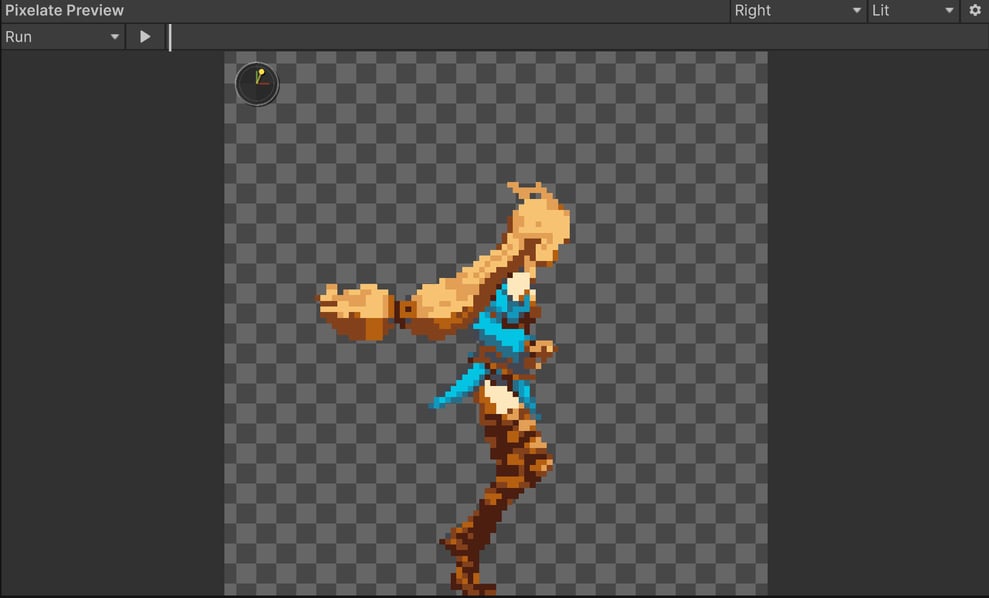
Toolbar
Draw modes
- Unlit: the sprite’s colors with every effect except lighting. This is what Export writes unless Lighting’s Export Lit Sprites is on.
- Lit: the same, with the Lighting effect’s lights applied.
- Normal: the captured normals, the same data the exported normal maps come from.
Updating
Changing an effect updates the Preview right away. Changing something that affects the capture, such as the Source, Cell Size, a view or a clip, recaptures it, which can take a moment for long clips. If the Preview ever looks out of date, use Refresh Current Preview in the gear menu. Clear Preview Cache frees the memory used by cached previews.Very large sprites (over 2048 px on a side) can’t be previewed. The Output line under Cell Size then reads (preview too large). Lower Cell Size or Pixels Per Unit.
Save GIF
Share an animation without leaving Unity. In the gear menu, choose Save GIF and a scale: 1x (Actual Size), 2x or 4x.
- The GIF shows exactly what the Preview shows: the current view, clip and draw mode, every frame at the clip’s FPS, looping.
- Transparent pixels stay transparent. With a Color Palette the colors are exact.
- The save dialog opens in the Output Folder with a name like
Knight_Run_E.gif. You can save it anywhere, including outside the project. A GIF saved insideAssetsis imported and highlighted in the Project window.