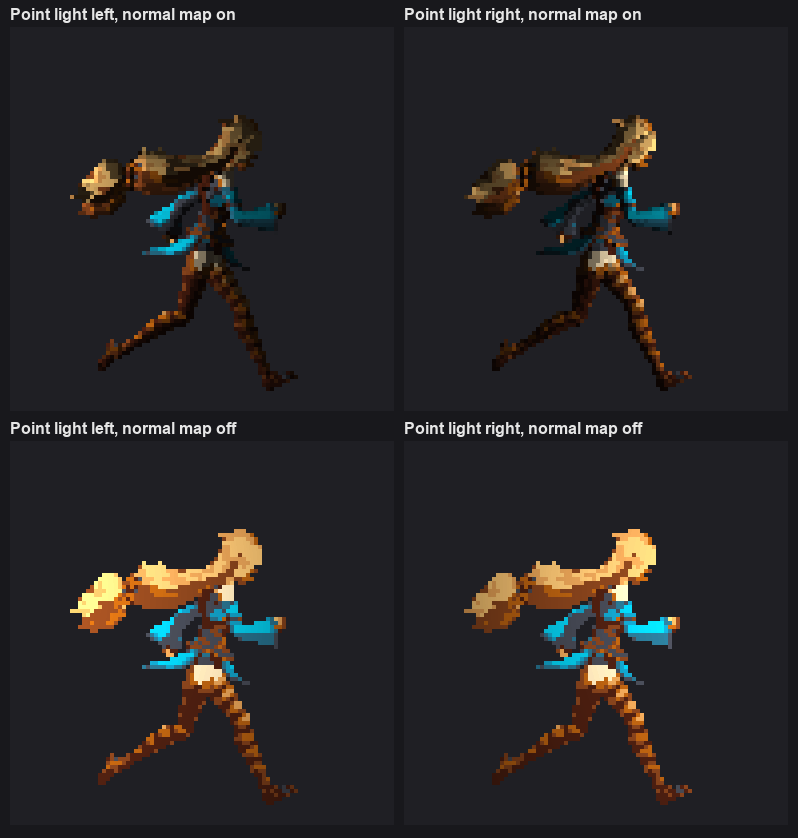
- Normal maps for your game’s 2D lights. Export writes one per sprite sheet and links it automatically.
- Fixed lights in the Preview, and optionally baked into the exported sprites for hand-shaded looks.
Settings
Global Light
An ambient light that brightens every pixel evenly.Directional Light
A light from one direction that gives the sprite a lit side and a shaded side.Export
Use the normal maps with URP 2D lights
1
Export with Export Normal Map on
Each sprite sheet gets its normal map as the
_NormalMap secondary texture. You don’t need to change any import settings.2
Use a lit sprite material
Use a SpriteRenderer with the URP 2D Renderer’s default lit sprite material (
Sprite-Lit-Default).3
Enable normal maps on your 2D lights
On each Light 2D, under Normal Maps, set Quality to Fast or Accurate.
- Dynamic lighting in your game: keep Export Lit Sprites off and use the normal maps with 2D lights.
- A fixed, hand-shaded look: turn Export Lit Sprites on. The sprites carry their shading, and you can still export normal maps.