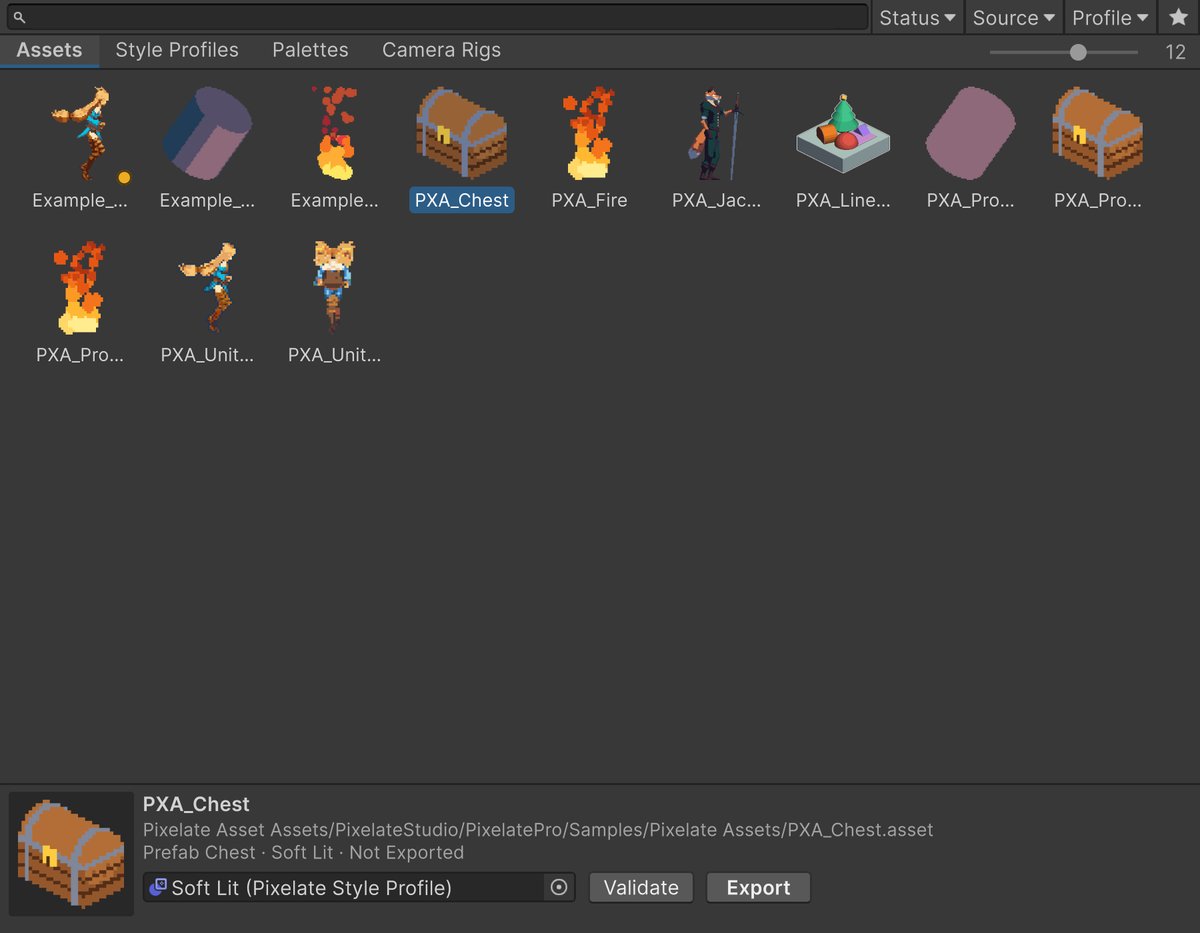
Browse and find
- Tabs: Assets, Style Profiles, Palettes and Camera Rigs. Each lists that type from the whole project, imported palette files included.
- Search filters the active tab by name as you type. With several words, all must match. Start typing anywhere in the grid to search.
- On the Assets tab, the Status, Source and Profile menus at the end of the search field narrow the list. Tick several values in one menu to show assets matching any of them; the menus combine, so an asset must match all three. All clears a menu. The menu shows its name when nothing is chosen, the value when one is, and the name with a count, such as Profile (2), when several are. The star button shows only favorites on any tab. Click the star on an item (shown on hover or when selected) or right-click the selection to add it to or remove it from your favorites. Favorites are stored for you only and never change the asset.
- The slider sets the thumbnail size. All the way left shows a list: one row per item, with each asset’s Style Profile and a status dot on the right (grey: not exported, orange: export outdated, green: up to date, red: a problem). Hover the dot for the status and details. Ctrl/Cmd + mouse wheel changes the size too. The size is the same on every tab.
Select, open and organize
The Browser works like the Project window:- Click to select; Ctrl/Cmd-click adds or removes, Shift-click selects a range. Selecting in the Browser selects the asset, so the Inspector follows, and selecting elsewhere selects it in the Browser (and opens its tab).
- Arrow keys, Home, End, Page Up and Page Down move the selection; add Shift to extend it. Ctrl/Cmd + A selects everything shown.
- Enter or double-click opens the item in the Inspector. F2 renames it. Delete asks first, then moves it to the trash.
- Drag items onto object fields in the Inspector or into Project folders.
- Right-click an item for Open, Show in Project, favorites, Rename, Delete, and on the Assets tab Validate, Export and Assign Style Profile. Right-click empty space to create a new item of the tab’s type.
Status
Each Pixelate Asset has a status. The list view and the details strip show it; Validate lists the details and how to fix them.
Statuses update in the background as you edit, items on screen first, without slowing down the Editor.
Work with many assets
Select one or more Pixelate Assets. The details strip shows the number selected and the actions: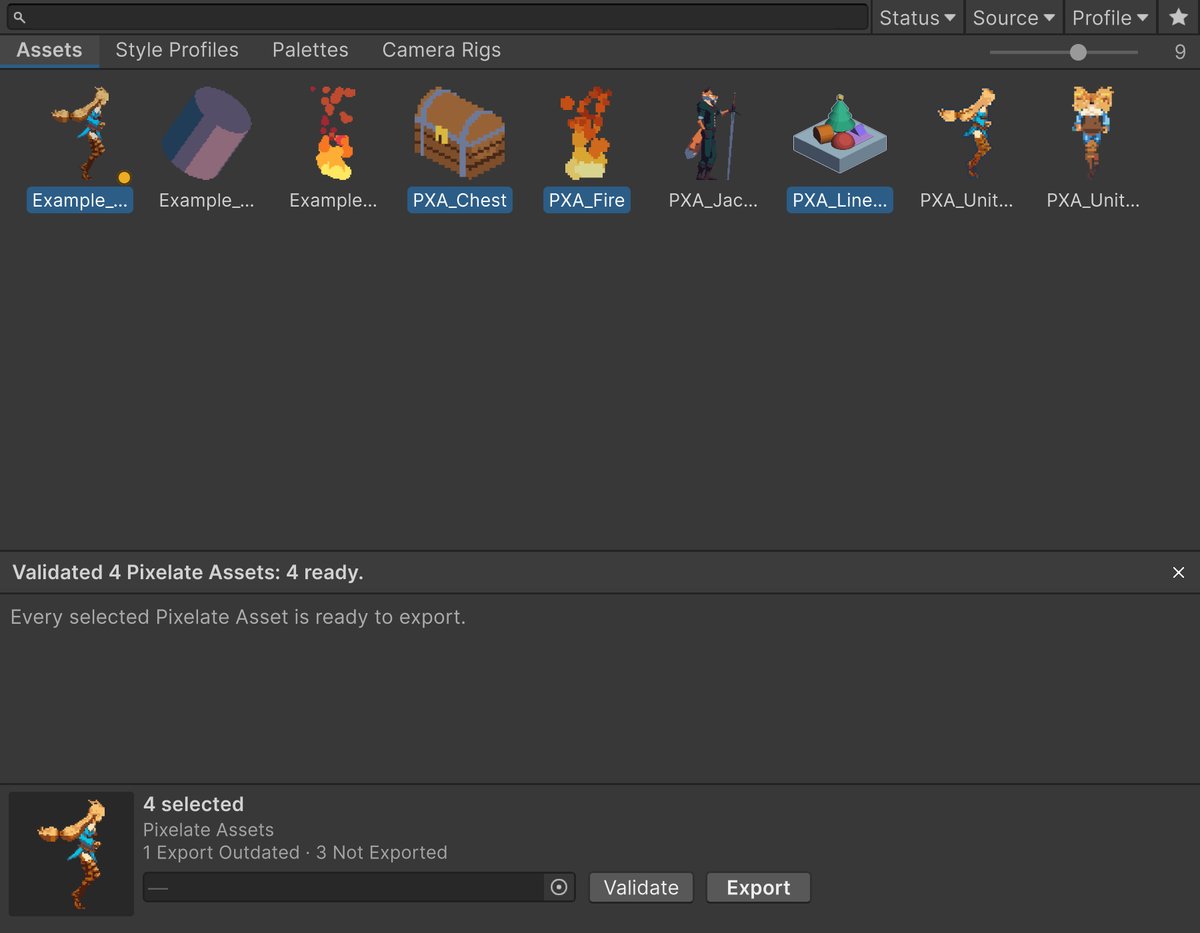
- Style Profile: pick or drop a profile to link it to every selected asset. It shows a dash when the selection uses different profiles. It is one Undo step.
- Validate: checks every selected asset and lists each warning or error with its fix. Click an entry to select that asset.
- Export: exports the selected assets one after another, with a progress bar. Press Cancel or Esc to stop after the current asset. If one asset fails, the others still export, and the results list shows what failed and why. Assets already exported stay on disk when you cancel.