Settings
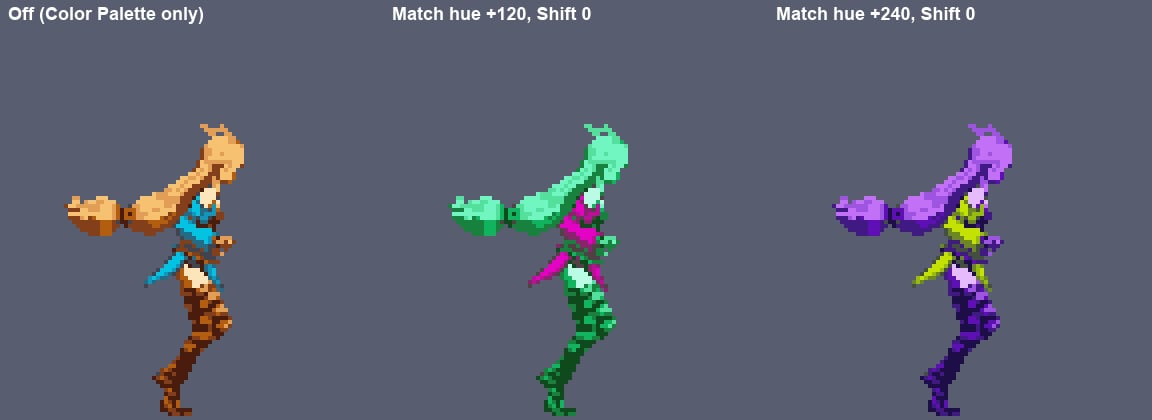
Under the fields, a mapping strip shows each source slot (top) and the Match color it becomes (bottom). Colors that are not in the source palette pass through unchanged, and transparency is kept.
Make a recolor
1
Get the source palette
With an Auto palette, click Export on the Color Palette to save it as a Pixelate Palette. With a Custom palette, you already have it.
2
Duplicate and recolor it
Duplicate the palette asset in the Project window (Edit > Duplicate), then change its colors slot by slot. Keep the slot order: slot 3 of the copy replaces slot 3 of the original.
3
Assign it as the Match Palette
Add Palette Swap and assign the copy. To recolor one asset only, turn on the Match Palette override in that asset. See overrides.
If the palettes have different lengths, slots wrap around the Match Palette. When the Match Palette is shorter, some Match colors are used by more than one source slot; the Inspector tells you when this happens.