> ## Documentation Index
> Fetch the complete documentation index at: https://docs.pixelatestudio.tomblack.ca/llms.txt
> Use this file to discover all available pages before exploring further.
# Quick start
> Create a Pixelate Asset from a model, preview it and export sprite sheets in under a minute.
This page takes you from a 3D model to sliced sprite sheets with default settings. The defaults already look like pixel art, so you can tune later.
**You need:** Unity 6.0 LTS or newer with the Built-In Render Pipeline or URP, and a model, prefab or particle prefab in your project.
In the Project window, select one or more models, prefabs or particle prefabs. Then choose **Assets > Create > Pixelate > Pixelate Asset** (also in the Project window's right-click **Create** menu).
Pixelate Pro creates one Pixelate Asset per source, next to it, named after the source (`{source name}.asset`). Each new asset is ready to preview:
* **Source** is assigned.
* **Cell Size** and **Camera Offset** are fitted around the model so the whole thing is in frame.
* Animation clips the model imports are added to **Animation**.
* A Style Profile is linked. If your project has none of its own yet (the sample profiles don't count), Pixelate Pro creates `StyleProfile_Default` with an automatic color palette and lighting.
The first new asset is selected, so its settings open in the Inspector.
The Preview sits at the bottom of the Inspector. It shows exactly what Export writes. Use the toolbar to pick a clip, press play, switch the camera view, or switch between **Lit**, **Unlit** and **Normal**.
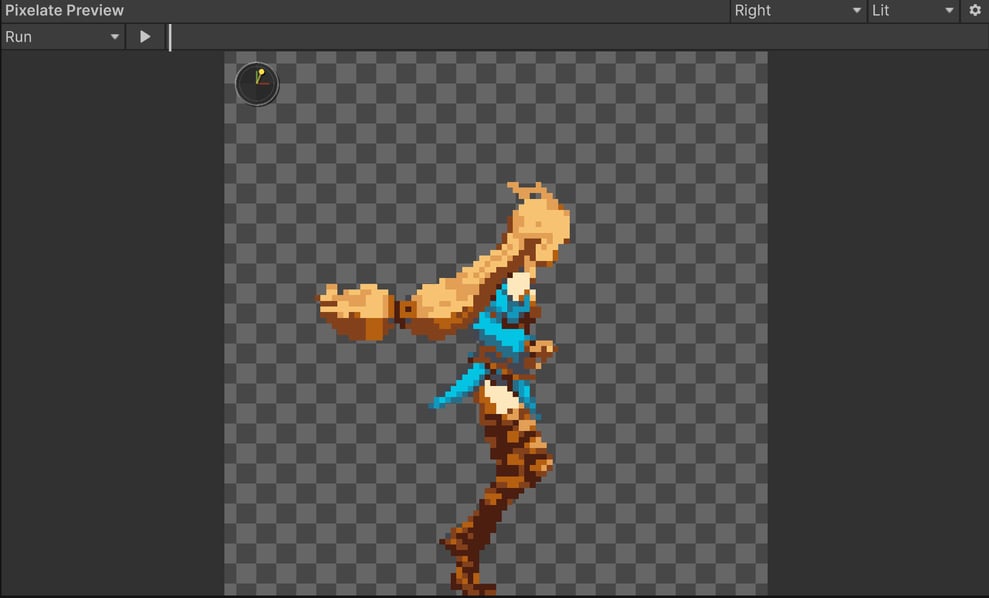 If the preview is not open, drag the Preview bar at the bottom of the Inspector up, or click it.
Click **Export** at the top of the Inspector. A short status message appears under the button when it finishes, for example `Exported 4 textures and 2 animation clips`.
By default the sprites land next to your Pixelate Asset:
```text theme={null}
Assets/Characters/
Knight.asset
Knight/
Run/
Knight_Run_Front.png (sliced sprite sheet)
Knight_Run_Front.anim (Animation Clip)
Normals/
Knight_Run_Front_N.png (normal map)
Idle/
...
```
Every sheet is imported as a Sprite (Multiple), sliced on a fixed grid, with Point filtering and your profile's Pixels Per Unit.
Drag one of the exported `.anim` files onto a GameObject that has a SpriteRenderer, press Play, and the character runs.
Want to see finished setups first? Choose **Pixelate > Samples**, select any sample Pixelate Asset and click **Export**. **Pixelate > Quick Start** shows a short version of this page inside Unity.
## Next steps
Capture 4, 8 or 16 directions for top-down characters.
Change palette, lines, dithering and lighting for every asset that shares the profile.
Animator Controllers, Sprite Libraries and normal maps for 2D lights.
Validate and export a whole project from the Browser window.
This documentation is built and hosted on [Mintlify](https://mintlify.com), a developer documentation platform.
If the preview is not open, drag the Preview bar at the bottom of the Inspector up, or click it.
Click **Export** at the top of the Inspector. A short status message appears under the button when it finishes, for example `Exported 4 textures and 2 animation clips`.
By default the sprites land next to your Pixelate Asset:
```text theme={null}
Assets/Characters/
Knight.asset
Knight/
Run/
Knight_Run_Front.png (sliced sprite sheet)
Knight_Run_Front.anim (Animation Clip)
Normals/
Knight_Run_Front_N.png (normal map)
Idle/
...
```
Every sheet is imported as a Sprite (Multiple), sliced on a fixed grid, with Point filtering and your profile's Pixels Per Unit.
Drag one of the exported `.anim` files onto a GameObject that has a SpriteRenderer, press Play, and the character runs.
Want to see finished setups first? Choose **Pixelate > Samples**, select any sample Pixelate Asset and click **Export**. **Pixelate > Quick Start** shows a short version of this page inside Unity.
## Next steps
Capture 4, 8 or 16 directions for top-down characters.
Change palette, lines, dithering and lighting for every asset that shares the profile.
Animator Controllers, Sprite Libraries and normal maps for 2D lights.
Validate and export a whole project from the Browser window.
This documentation is built and hosted on [Mintlify](https://mintlify.com), a developer documentation platform.