> ## Documentation Index
> Fetch the complete documentation index at: https://docs.pixelatestudio.tomblack.ca/llms.txt
> Use this file to discover all available pages before exploring further.
# Style Profiles and overrides
> Share one pixel-art look across many Pixelate Assets, and change single values per asset with overrides.
A Style Profile holds the look of your sprites: the pixel settings and a stack of effects. Many Pixelate Assets can link the same profile, so changing it updates every character, prop and effect that uses it.
## Create and link a profile
* In a Pixelate Asset, click **New Style Profile** next to the empty Style Profile slot. The profile is created next to the asset and linked.
* Or choose **Assets > Create > Pixelate > Pixelate Style Profile**, then drag it into the asset's Style Profile slot.
* To link one profile to many assets at once, use the [Browser window](/guides/browser).
An asset without a Style Profile has no effects and can't be previewed or exported. The last profile you linked or created becomes the default for **Create > Pixelate > Pixelate Asset** (the sample profiles never do, so deleting the Samples folder never breaks your assets).
## Profile Settings
Every profile starts with **Profile Settings**. It is always first, and you can't remove or disable it.
| Setting | What it does |
| - | - |
| **Pixelated** | On: sprites use Point filtering so pixels stay crisp. Turn off only for smooth, non-pixel-art output. |
| **Pixels Per Unit** | Written to the exported sprites so they show at the right size in your scenes. Match the PPU of the rest of your 2D art. Default 32. |
Capture always uses your project's active render pipeline (URP or Built-In), so there is nothing to set for it.
## Effects
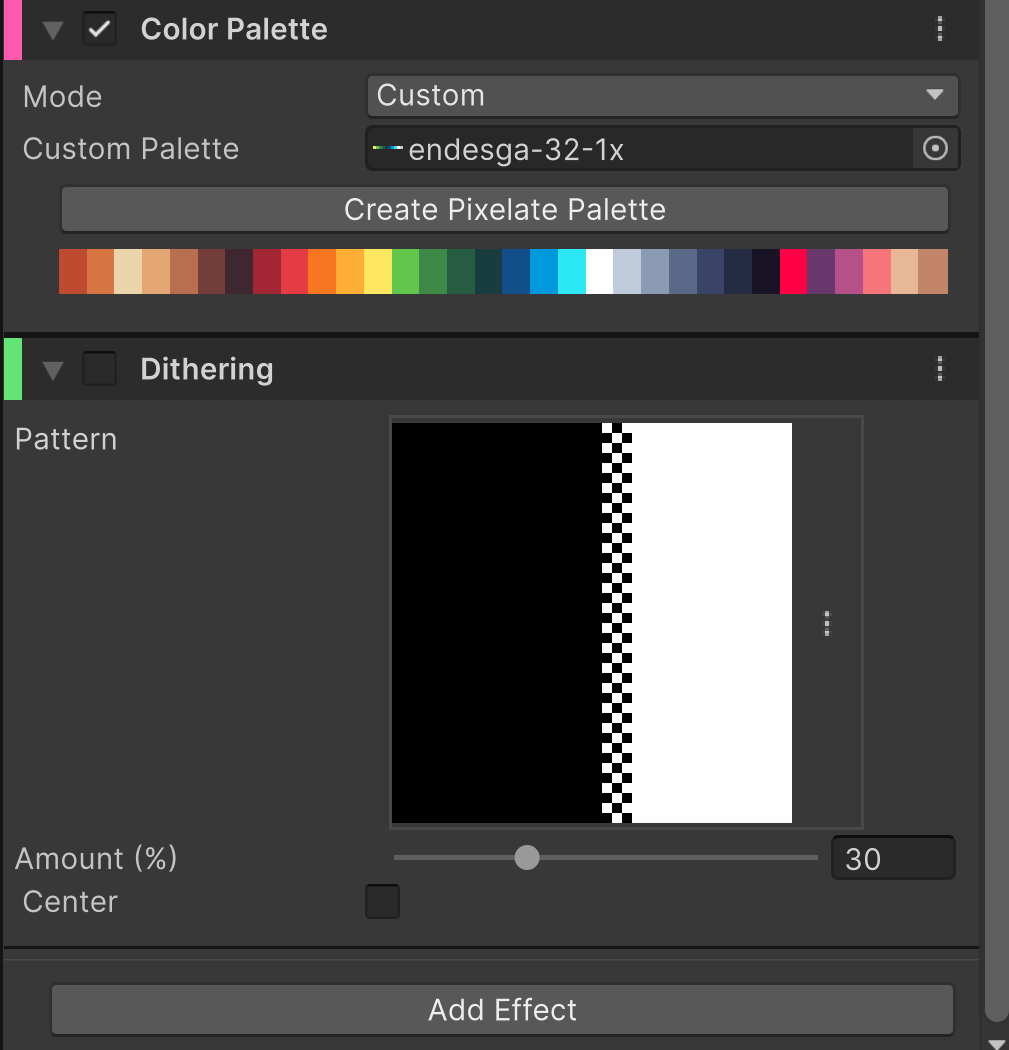 Click **Add Effect** to pick an effect from a searchable menu grouped by category. Built-in effects:
| Effect | Use it to |
| - | - |
| [Lighting](/effects/lighting) | Shade sprites with fixed lights, and export normal maps for 2D lights. |
| [Color Adjustments](/effects/color-adjustments) | Change exposure, contrast, saturation or hue before the palette. |
| [Color Palette](/effects/color-palette) | Limit the sprite to a palette, automatic or your own. |
| [Pixel Cleanup](/effects/pixel-cleanup) | Remove stray single pixels and pinholes. |
| [Dithering](/effects/dithering) | Blend between palette colors with ordered patterns. |
| [Lines](/effects/lines) | Draw a pixel outline, an inline, and interior lines from colors, normals, and depth. |
| [Palette Swap](/effects/palette-swap) | Recolor through a second palette, or cycle colors. |
Effects always run in a fixed order, and the list shows them in that order, so you can read the stack top to bottom: Profile Settings, Lighting, Color Adjustments, Color Palette, Pixel Cleanup, Dithering, Lines, Palette Swap. You don't need to arrange them.
Each effect has:
* a **checkbox** in its header to turn it on or off without losing its settings;
* a **menu** (the three dots) with **Reset** and **Remove**;
* a foldout you can collapse. Collapsed effects still show their warnings in the list below.
## Override a value for one asset
In a Pixelate Asset's Inspector, each effect field has a checkbox on its left. Tick it to give this asset its own value; untick it to follow the profile again.
Click **Add Effect** to pick an effect from a searchable menu grouped by category. Built-in effects:
| Effect | Use it to |
| - | - |
| [Lighting](/effects/lighting) | Shade sprites with fixed lights, and export normal maps for 2D lights. |
| [Color Adjustments](/effects/color-adjustments) | Change exposure, contrast, saturation or hue before the palette. |
| [Color Palette](/effects/color-palette) | Limit the sprite to a palette, automatic or your own. |
| [Pixel Cleanup](/effects/pixel-cleanup) | Remove stray single pixels and pinholes. |
| [Dithering](/effects/dithering) | Blend between palette colors with ordered patterns. |
| [Lines](/effects/lines) | Draw a pixel outline, an inline, and interior lines from colors, normals, and depth. |
| [Palette Swap](/effects/palette-swap) | Recolor through a second palette, or cycle colors. |
Effects always run in a fixed order, and the list shows them in that order, so you can read the stack top to bottom: Profile Settings, Lighting, Color Adjustments, Color Palette, Pixel Cleanup, Dithering, Lines, Palette Swap. You don't need to arrange them.
Each effect has:
* a **checkbox** in its header to turn it on or off without losing its settings;
* a **menu** (the three dots) with **Reset** and **Remove**;
* a foldout you can collapse. Collapsed effects still show their warnings in the list below.
## Override a value for one asset
In a Pixelate Asset's Inspector, each effect field has a checkbox on its left. Tick it to give this asset its own value; untick it to follow the profile again.
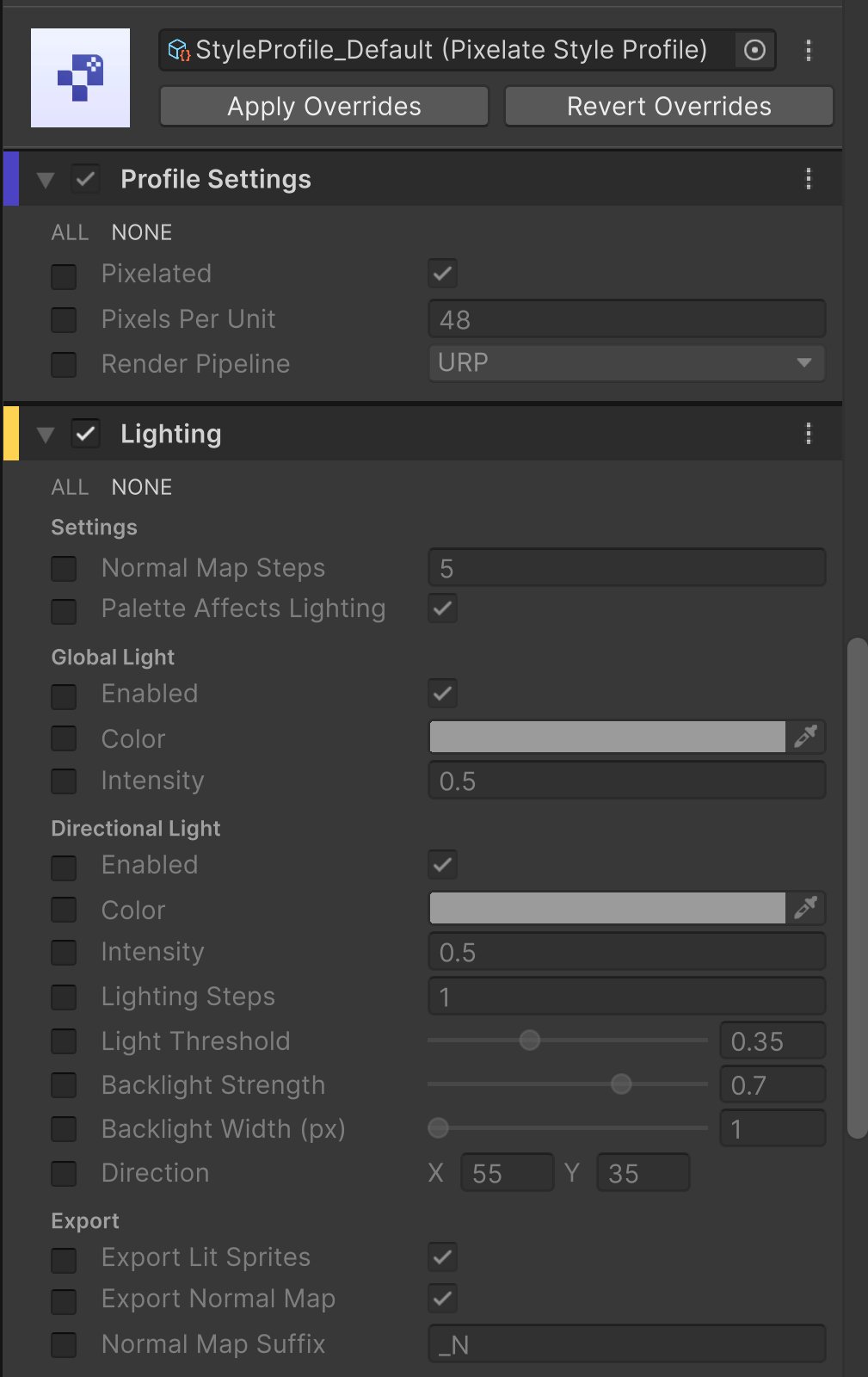 * **ALL** / **NONE** above an effect's fields tick or untick every override of that effect.
* **Apply Overrides** copies this asset's override values into the profile, then clears them. Every asset using the profile gets the new values.
* **Revert Overrides** removes this asset's overrides so it follows the profile exactly.
Overrides are stored on the Pixelate Asset, so the profile stays the single source of truth. When you open the profile itself, there are no override checkboxes.
Replacing or clearing an asset's Style Profile also clears its overrides for the old profile. It is one Undo step, so **Edit > Undo** brings back both the profile and its overrides.
This documentation is built and hosted on [Mintlify](https://mintlify.com), a developer documentation platform.
* **ALL** / **NONE** above an effect's fields tick or untick every override of that effect.
* **Apply Overrides** copies this asset's override values into the profile, then clears them. Every asset using the profile gets the new values.
* **Revert Overrides** removes this asset's overrides so it follows the profile exactly.
Overrides are stored on the Pixelate Asset, so the profile stays the single source of truth. When you open the profile itself, there are no override checkboxes.
Replacing or clearing an asset's Style Profile also clears its overrides for the old profile. It is one Undo step, so **Edit > Undo** brings back both the profile and its overrides.
This documentation is built and hosted on [Mintlify](https://mintlify.com), a developer documentation platform.