> ## Documentation Index
> Fetch the complete documentation index at: https://docs.pixelatestudio.tomblack.ca/llms.txt
> Use this file to discover all available pages before exploring further.
# Palettes
> Import .gpl, .pal and .hex palette files, create and edit Pixelate Palettes, and use them for color limiting and swaps.
A **Pixelate Palette** is a project asset that holds an ordered list of colors. You use palettes in two places:
* [Color Palette](/effects/color-palette) in Custom mode limits sprites to the palette.
* [Palette Swap](/effects/palette-swap) replaces colors slot by slot with another palette.
Both also accept imported palette files and palette images directly.
## Import a palette file
Drop a palette file into your project, for example one downloaded from [Lospec](https://lospec.com/palette-list). Pixelate Pro imports these formats with no extra steps:
| Format | Extension | Typical source |
| - | - | - |
| GIMP palette | `.gpl` | GIMP, Aseprite, Lospec |
| JASC palette | `.pal` | Paint Shop Pro, Lospec |
| Hex list | `.hex` | One hex color per line, Lospec |
The file becomes a palette you can assign right away. Colors keep the file's order, and any alpha is dropped.
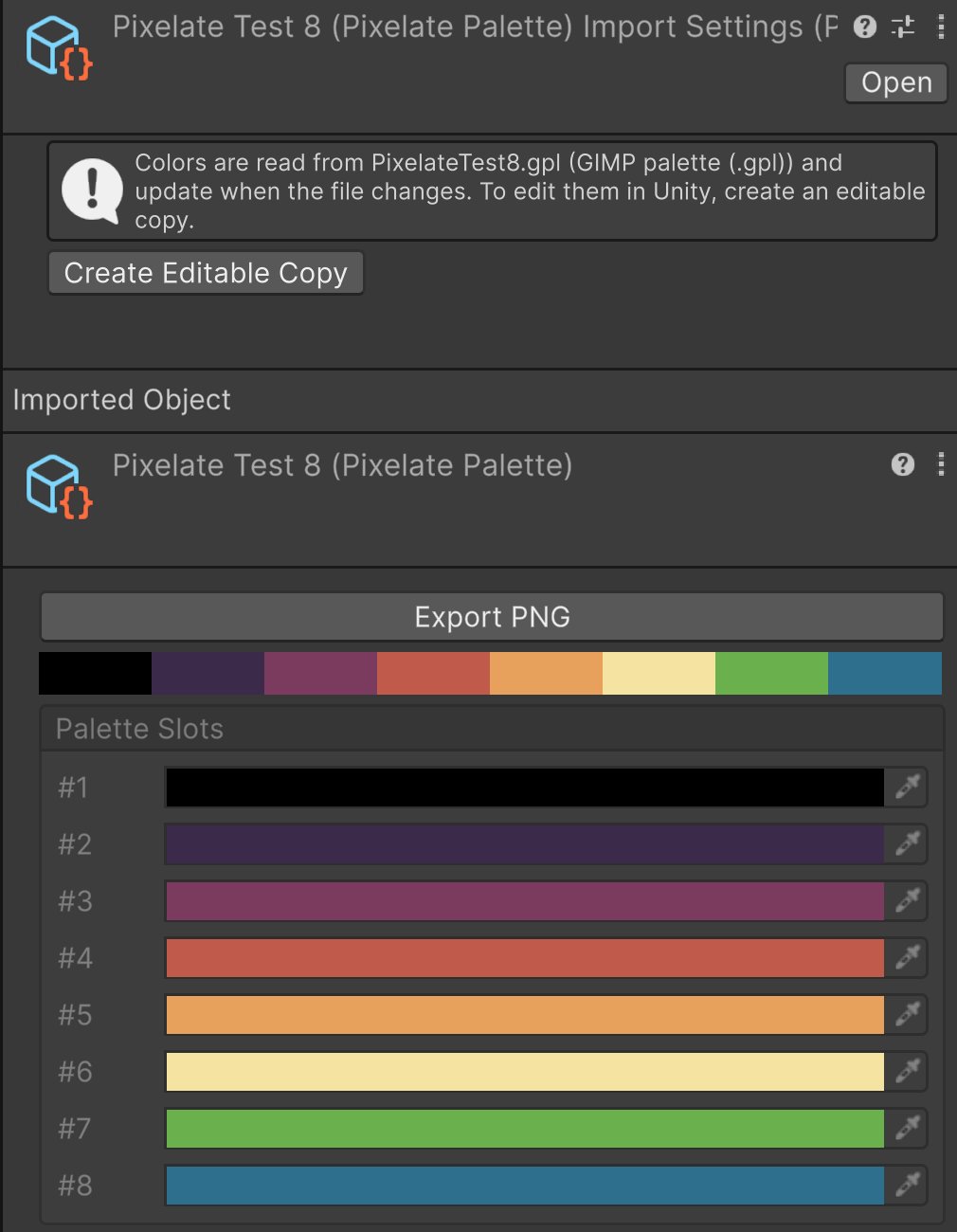 An imported palette is read-only in Unity because the file owns it. When you change the file, the palette updates. To edit the colors in Unity, click **Create Editable Copy**: it saves `{name} Editable.asset` next to the file.
If a file has lines Pixelate Pro can't read, the Console lists them with the line number and how to fix it; the rest of the colors still import. Binary `.pal` files aren't supported: export the palette as JASC-PAL, `.gpl` or `.hex` instead.
## Create a Pixelate Palette
* **From an image:** select a palette strip PNG (a Sprite or Texture2D) and choose **Assets > Create > Pixelate > Pixelate Palette**.
* **From an Auto palette:** click **Export** on a [Color Palette](/effects/color-palette#auto-palettes) effect in Auto mode.
* **From a palette image already assigned** as Custom Palette or Match Palette: click **Create Pixelate Palette** in the effect. It creates `Palette_{image name}.asset` next to the image and assigns it.
## Edit a palette
Select a Pixelate Palette in the Project window. Its Inspector lists the **Palette Slots**:
* change a slot's color with the color field or the eyedropper;
* drag slots to reorder them, and use **+** / **-** to add or remove slots;
* **Sort** reorders all slots by hue, saturation, brightness, luminance, RGB, red, green or blue, or inverts the order;
* **Export PNG** saves the palette as a PNG color strip, handy for art tools.
You can also edit the palette in place from the Color Palette effect (**Start Editing**) or Palette Swap (**Edit Match Palette**).
For [Palette Swap](/effects/palette-swap), slot order matters: slot 3 of the Match Palette replaces slot 3 of the source palette. Sort both palettes the same way before you recolor.
This documentation is built and hosted on [Mintlify](https://mintlify.com), a developer documentation platform.
An imported palette is read-only in Unity because the file owns it. When you change the file, the palette updates. To edit the colors in Unity, click **Create Editable Copy**: it saves `{name} Editable.asset` next to the file.
If a file has lines Pixelate Pro can't read, the Console lists them with the line number and how to fix it; the rest of the colors still import. Binary `.pal` files aren't supported: export the palette as JASC-PAL, `.gpl` or `.hex` instead.
## Create a Pixelate Palette
* **From an image:** select a palette strip PNG (a Sprite or Texture2D) and choose **Assets > Create > Pixelate > Pixelate Palette**.
* **From an Auto palette:** click **Export** on a [Color Palette](/effects/color-palette#auto-palettes) effect in Auto mode.
* **From a palette image already assigned** as Custom Palette or Match Palette: click **Create Pixelate Palette** in the effect. It creates `Palette_{image name}.asset` next to the image and assigns it.
## Edit a palette
Select a Pixelate Palette in the Project window. Its Inspector lists the **Palette Slots**:
* change a slot's color with the color field or the eyedropper;
* drag slots to reorder them, and use **+** / **-** to add or remove slots;
* **Sort** reorders all slots by hue, saturation, brightness, luminance, RGB, red, green or blue, or inverts the order;
* **Export PNG** saves the palette as a PNG color strip, handy for art tools.
You can also edit the palette in place from the Color Palette effect (**Start Editing**) or Palette Swap (**Edit Match Palette**).
For [Palette Swap](/effects/palette-swap), slot order matters: slot 3 of the Match Palette replaces slot 3 of the source palette. Sort both palettes the same way before you recolor.
This documentation is built and hosted on [Mintlify](https://mintlify.com), a developer documentation platform.