> ## Documentation Index
> Fetch the complete documentation index at: https://docs.pixelatestudio.tomblack.ca/llms.txt
> Use this file to discover all available pages before exploring further.
# Palette Swap
> Recolor sprites slot by slot through a second palette, for skins, teams and color cycling.
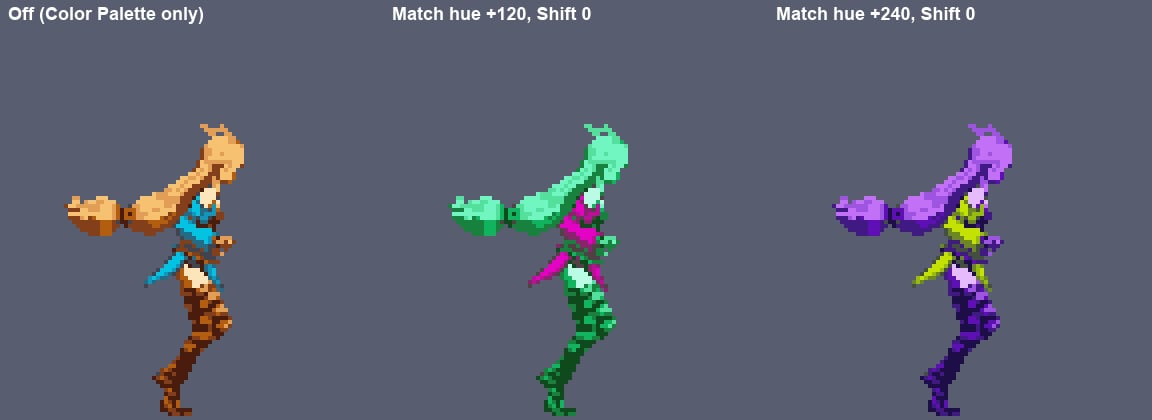
Palette Swap replaces each color of the active Color Palette with the color in the same slot of another palette. Use it for character skins, team colors, or color cycling, without recapturing the source.
Palette Swap needs an enabled [Color Palette](/effects/color-palette) in the same profile. It runs last, so palette-colored lines are swapped too.
 ## Settings
| Setting | What it does |
| - | - |
| **Match Palette** | The palette that supplies the new colors: a Pixelate Palette, an imported palette file, or a Sprite or Texture palette strip. Source slot 1 becomes Match slot 1, slot 2 becomes slot 2, and so on. |
| **Shift** | Offsets which Match slot each source slot uses: slot *i* uses Match slot *i + Shift*, wrapping around. Step it to cycle colors through the palette. |
Under the fields, a mapping strip shows each source slot (top) and the Match color it becomes (bottom). Colors that are not in the source palette pass through unchanged, and transparency is kept.
## Make a recolor
With an Auto palette, click **Export** on the Color Palette to save it as a Pixelate Palette. With a Custom palette, you already have it.
Duplicate the palette asset in the Project window (**Edit > Duplicate**), then change its colors slot by slot. Keep the slot order: slot 3 of the copy replaces slot 3 of the original.
Add Palette Swap and assign the copy. To recolor one asset only, turn on the Match Palette override in that asset. See [overrides](/guides/style-profiles#override-a-value-for-one-asset).
To edit the Match Palette right here, click **Edit Match Palette**. For an imported palette file, **Create Editable Copy** makes an editable copy first; for an image, **Create Pixelate Palette** does.
If the palettes have different lengths, slots wrap around the Match Palette. When the Match Palette is shorter, some Match colors are used by more than one source slot; the Inspector tells you when this happens.
This documentation is built and hosted on [Mintlify](https://mintlify.com), a developer documentation platform.
## Settings
| Setting | What it does |
| - | - |
| **Match Palette** | The palette that supplies the new colors: a Pixelate Palette, an imported palette file, or a Sprite or Texture palette strip. Source slot 1 becomes Match slot 1, slot 2 becomes slot 2, and so on. |
| **Shift** | Offsets which Match slot each source slot uses: slot *i* uses Match slot *i + Shift*, wrapping around. Step it to cycle colors through the palette. |
Under the fields, a mapping strip shows each source slot (top) and the Match color it becomes (bottom). Colors that are not in the source palette pass through unchanged, and transparency is kept.
## Make a recolor
With an Auto palette, click **Export** on the Color Palette to save it as a Pixelate Palette. With a Custom palette, you already have it.
Duplicate the palette asset in the Project window (**Edit > Duplicate**), then change its colors slot by slot. Keep the slot order: slot 3 of the copy replaces slot 3 of the original.
Add Palette Swap and assign the copy. To recolor one asset only, turn on the Match Palette override in that asset. See [overrides](/guides/style-profiles#override-a-value-for-one-asset).
To edit the Match Palette right here, click **Edit Match Palette**. For an imported palette file, **Create Editable Copy** makes an editable copy first; for an image, **Create Pixelate Palette** does.
If the palettes have different lengths, slots wrap around the Match Palette. When the Match Palette is shorter, some Match colors are used by more than one source slot; the Inspector tells you when this happens.
This documentation is built and hosted on [Mintlify](https://mintlify.com), a developer documentation platform.