> ## Documentation Index
> Fetch the complete documentation index at: https://docs.pixelatestudio.tomblack.ca/llms.txt
> Use this file to discover all available pages before exploring further.
# Color Palette
> Limit sprites to a palette built from the source's own colors, or to a palette you choose.
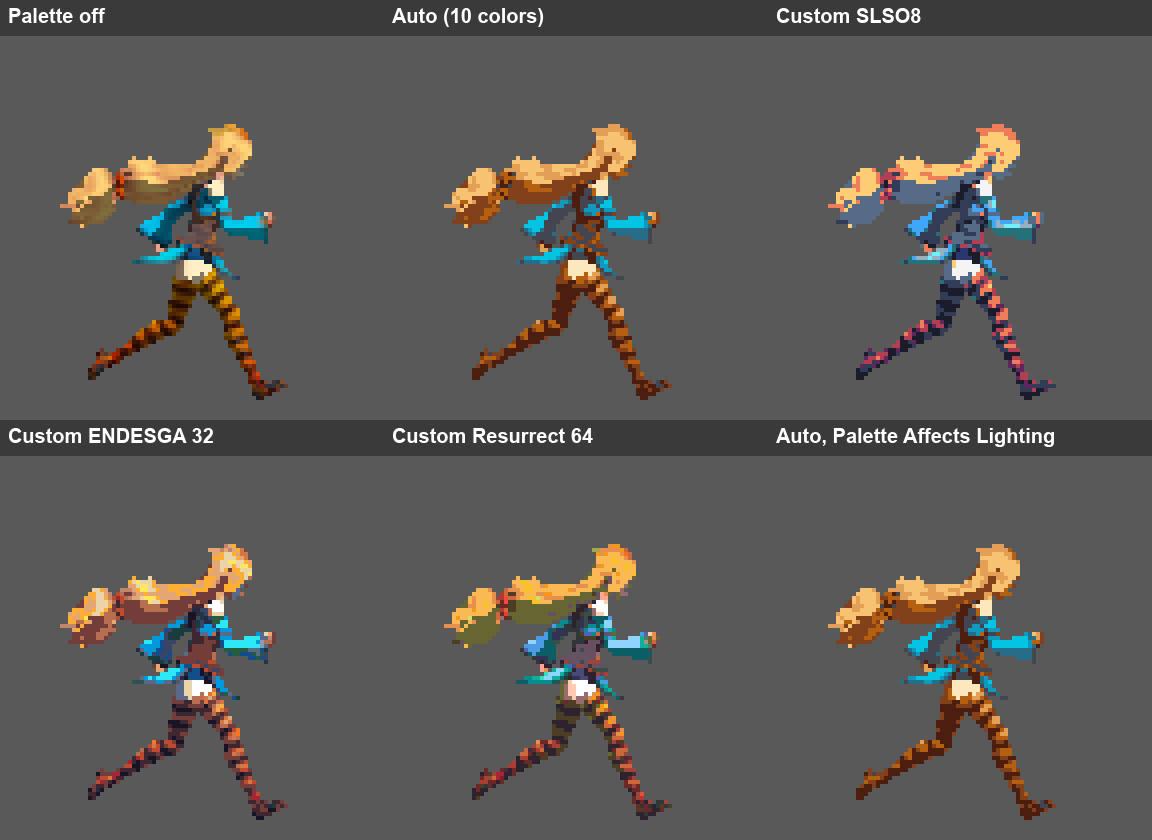
Color Palette snaps every pixel to a limited set of colors. It is the single biggest step from "downscaled 3D" to "pixel art", and the effects after it (Pixel Cleanup, Dithering, Lines, Palette Swap) work with its colors.
 ## Mode
| Setting | What it does |
| - | - |
| **Mode** | **Auto** builds a palette from the source's own colors. **Custom** uses a palette you assign. |
| **Color Limit** | Auto only. Maximum number of colors in the generated palette. Fewer colors give a flatter, more retro look. Default 8. |
| **Custom Palette** | Custom only. A Pixelate Palette, an imported `.gpl`, `.pal` or `.hex` file, or a Sprite or Texture palette strip. |
## Auto palettes
An Auto palette is generated per Pixelate Asset from what the Preview shows: the current camera view and clip, sampled across its frames. A grey line such as `Generated from Preview: Right / Run` tells you where the colors came from.
* **Generate** / **Regenerate** builds the palette from the colors in the current Preview. To use another view or clip, switch the Preview first.
* **Edit** lets you change the generated colors by hand. **Sort** then reorders them. Regenerating asks before it discards your edits.
* **Export** saves the palette as a Pixelate Palette asset, so other assets can use it as a Custom palette.
When something upstream changes (the source, Color Limit, or Color Adjustments), the palette shows **Auto palette is stale** until you click Regenerate. Assets created with **Create > Pixelate > Pixelate Asset** from a model get their palette generated right away.
Auto palettes are generated per asset, so each character keeps its own colors even when they share a profile. To give a whole cast the same colors, use one Custom palette on the profile.
## Custom palettes
## Mode
| Setting | What it does |
| - | - |
| **Mode** | **Auto** builds a palette from the source's own colors. **Custom** uses a palette you assign. |
| **Color Limit** | Auto only. Maximum number of colors in the generated palette. Fewer colors give a flatter, more retro look. Default 8. |
| **Custom Palette** | Custom only. A Pixelate Palette, an imported `.gpl`, `.pal` or `.hex` file, or a Sprite or Texture palette strip. |
## Auto palettes
An Auto palette is generated per Pixelate Asset from what the Preview shows: the current camera view and clip, sampled across its frames. A grey line such as `Generated from Preview: Right / Run` tells you where the colors came from.
* **Generate** / **Regenerate** builds the palette from the colors in the current Preview. To use another view or clip, switch the Preview first.
* **Edit** lets you change the generated colors by hand. **Sort** then reorders them. Regenerating asks before it discards your edits.
* **Export** saves the palette as a Pixelate Palette asset, so other assets can use it as a Custom palette.
When something upstream changes (the source, Color Limit, or Color Adjustments), the palette shows **Auto palette is stale** until you click Regenerate. Assets created with **Create > Pixelate > Pixelate Asset** from a model get their palette generated right away.
Auto palettes are generated per asset, so each character keeps its own colors even when they share a profile. To give a whole cast the same colors, use one Custom palette on the profile.
## Custom palettes
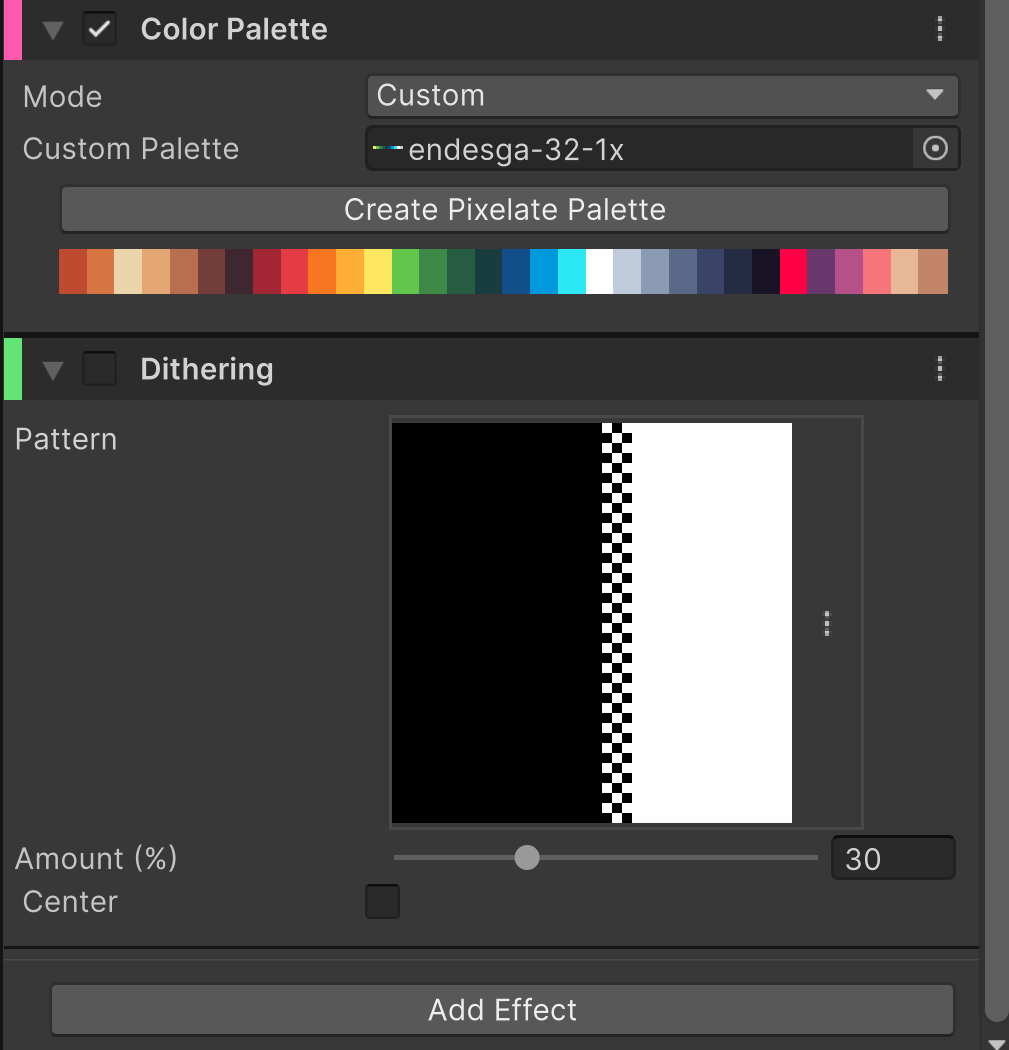 Assign any of these to **Custom Palette**:
* a **Pixelate Palette** asset. Click **Start Editing** to reorder, sort and edit its slots in place, and **Stop Editing** when done.
* an **imported palette file** (`.gpl`, `.pal`, `.hex`). It is read-only because the file owns it; **Create Editable Copy** saves an editable Pixelate Palette next to it and assigns the copy.
* a **Sprite or Texture** palette strip, such as a PNG downloaded from Lospec. **Create Pixelate Palette** turns it into an editable Pixelate Palette and assigns it.
See [Palettes](/guides/palettes) for importing and editing palettes.
## Color Palette and Lighting
When the profile also has [Lighting](/effects/lighting), its **Palette Affects Lighting** setting decides the order:
* **Off:** the base colors are snapped first, then lit. Lit sprites can show in-between shades.
* **On:** the lit result is snapped, so the final sprite uses only palette colors.
This documentation is built and hosted on [Mintlify](https://mintlify.com), a developer documentation platform.
Assign any of these to **Custom Palette**:
* a **Pixelate Palette** asset. Click **Start Editing** to reorder, sort and edit its slots in place, and **Stop Editing** when done.
* an **imported palette file** (`.gpl`, `.pal`, `.hex`). It is read-only because the file owns it; **Create Editable Copy** saves an editable Pixelate Palette next to it and assigns the copy.
* a **Sprite or Texture** palette strip, such as a PNG downloaded from Lospec. **Create Pixelate Palette** turns it into an editable Pixelate Palette and assigns it.
See [Palettes](/guides/palettes) for importing and editing palettes.
## Color Palette and Lighting
When the profile also has [Lighting](/effects/lighting), its **Palette Affects Lighting** setting decides the order:
* **Off:** the base colors are snapped first, then lit. Lit sprites can show in-between shades.
* **On:** the lit result is snapped, so the final sprite uses only palette colors.
This documentation is built and hosted on [Mintlify](https://mintlify.com), a developer documentation platform.